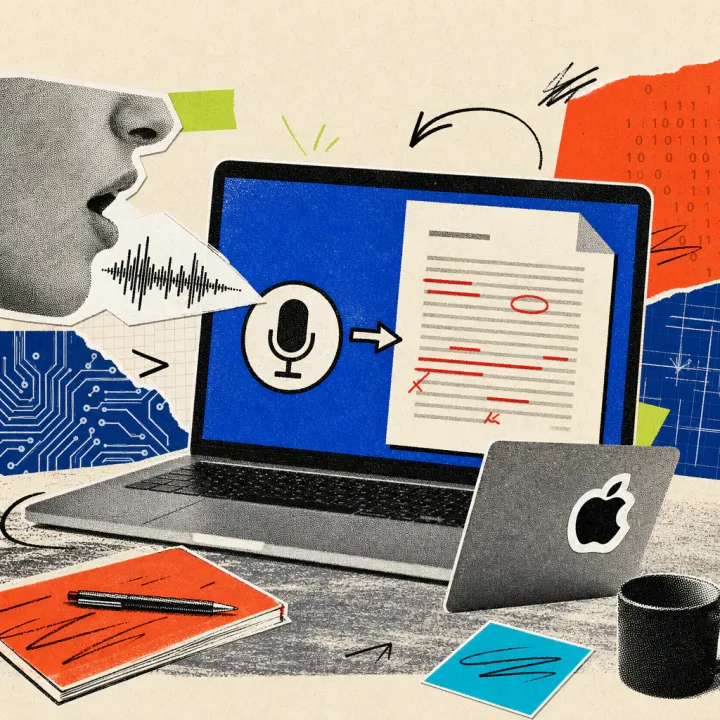
Google has equipped the free Gemini app for macOS with a system-wide dictation feature: a long press on the Fn key is enough to speak instead of typing in any open program. The AI automatically converts the spoken words into clean, properly formatted text. The feature has been available worldwide since late July 2026, but initially only with English speech input.
Gemini writes along in any program via the Fn key
As Google describes on the official product page, the feature is internally named “Speak to Window.” Holding down the Fn key on the Mac keyboard lets users dictate directly at the cursor position – whether in the Mail app, a word processor, or a chat window. Double-tapping the key instead starts hands-free recording, which does not require continuous holding. Alternatively, the feature can be started via its own icon in the Gemini input bar.
While dictating, Gemini automatically filters out filler words like “um” or “uh” and recognizes when a phrase is corrected mid-sentence. The finished text appears right where the cursor was, either as continuous text, in paragraphs, or as a bulleted list. Users who also turn on advanced screen awareness let the AI look at visible content: highlighted text, images, or documents can then be summarized, reworded, or edited further by voice command alone. Unlike the basic speech recognition already built into many programs, Gemini delivers a cleaned-up, ready-to-use text instead of a verbatim transcript full of stumbles.
A quick reply takes shape by voice instead of typing
A caseworker gets a customer inquiry by email and wants to reply quickly but has her hands full with paperwork. She opens the mail window, holds down the Fn key, and speaks the reply freely: delivery time, contact person, and a friendly closing line. Gemini turns this into a ready-to-send paragraph within seconds, free of “um” and repetitions, that she only needs to skim before sending.
The same trick works for a short note after a phone call, which the AI sorts directly into bullet points – handy for filing or passing on to colleagues. Longer meeting summaries benefit too: after a client meeting, jotting down the key agreements no longer means switching between a notepad and the keyboard, since the points can be spoken straight into a blank document. Similar voice features are now offered by Claude, with its voice mode for Gmail and Calendar, though its focus is reading and managing messages rather than free dictation across any program.
Free for everyone – but usable in English only for now
The Gemini app for macOS is free for all users, and the dictation feature costs nothing extra. It requires a Mac with Apple’s own chip (M-series) and at least macOS 15 (Sequoia). According to Google’s release notes, the feature rolled out worldwide on July 29, 2026. The speech recognition itself currently understands English only; according to a report by ifun.de, more languages are expected to follow over the course of the year, though Google has not given a fixed date for German. Anyone who mostly writes in German can therefore currently use the feature only for occasional English notes or emails to international colleagues.
Here’s how to set up the dictation feature:
- Download and install the Gemini app for Mac from the official Google page.
- Sign in with a Google account.
- Place the cursor where the text should appear in any program.
- Hold down the Fn key and speak in English.
- Release the key – the cleaned-up text appears automatically in the window.
What matters now is whether Google delivers German speech input quickly – without it, the benefit for German-speaking offices stays limited to English-language text for now. Anyone enabling advanced screen awareness should also keep in mind that voice recordings, screen content, and selected files are sent to Google for processing – for customer or company data, it is worth checking internal AI-tool guidelines first.